
Coming soon to Windows
See what's taking up space.
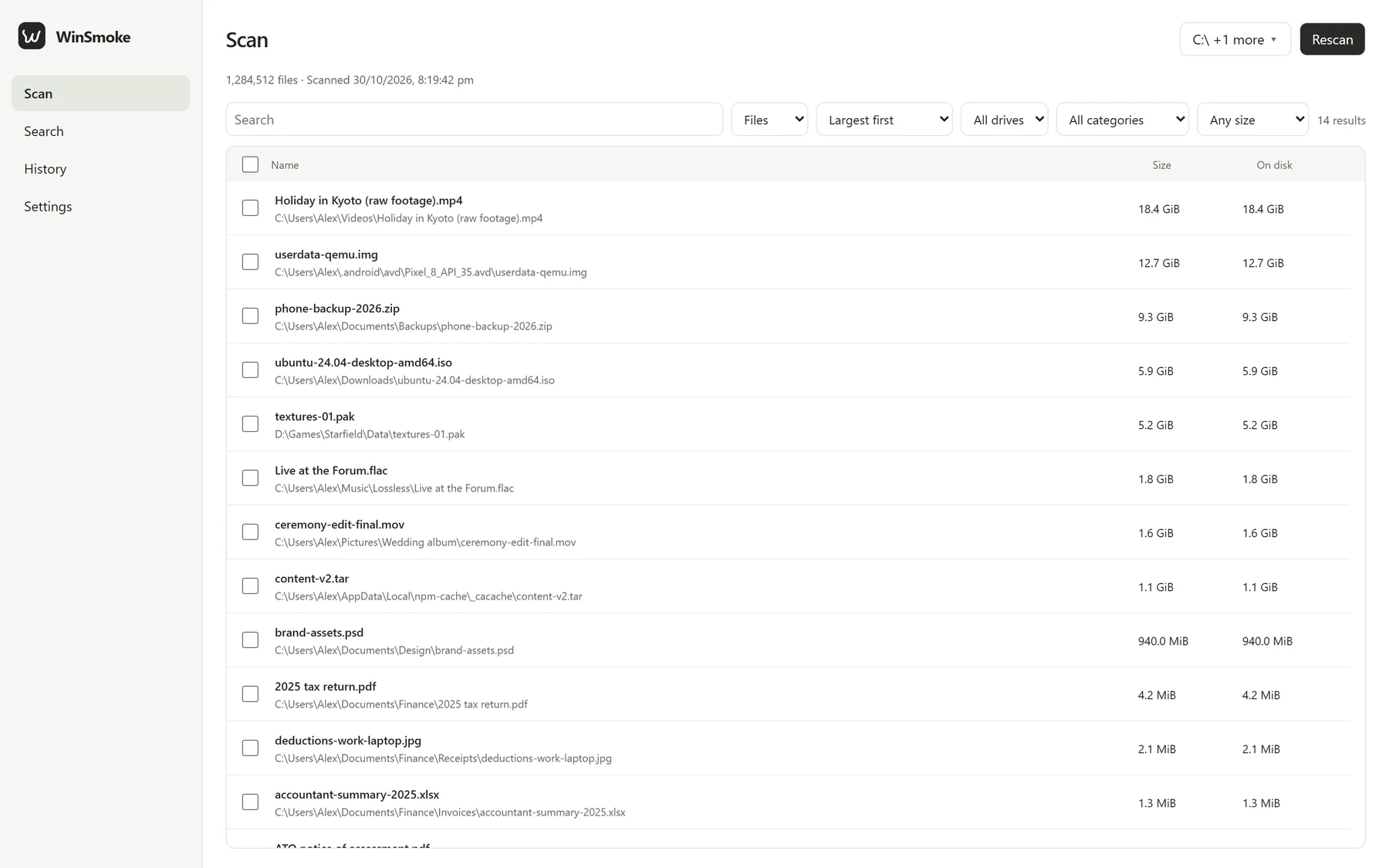
Scan a drive or folder, see files and folders ranked by size, and read what common locations are and what removing them would do.
Read-only. It never deletes or changes anything.
How it works
Scan, read, then decide yourself.
- 1
Pick a drive, folder or file to scan
- 2
See what takes the most space, ranked and filterable
- 3
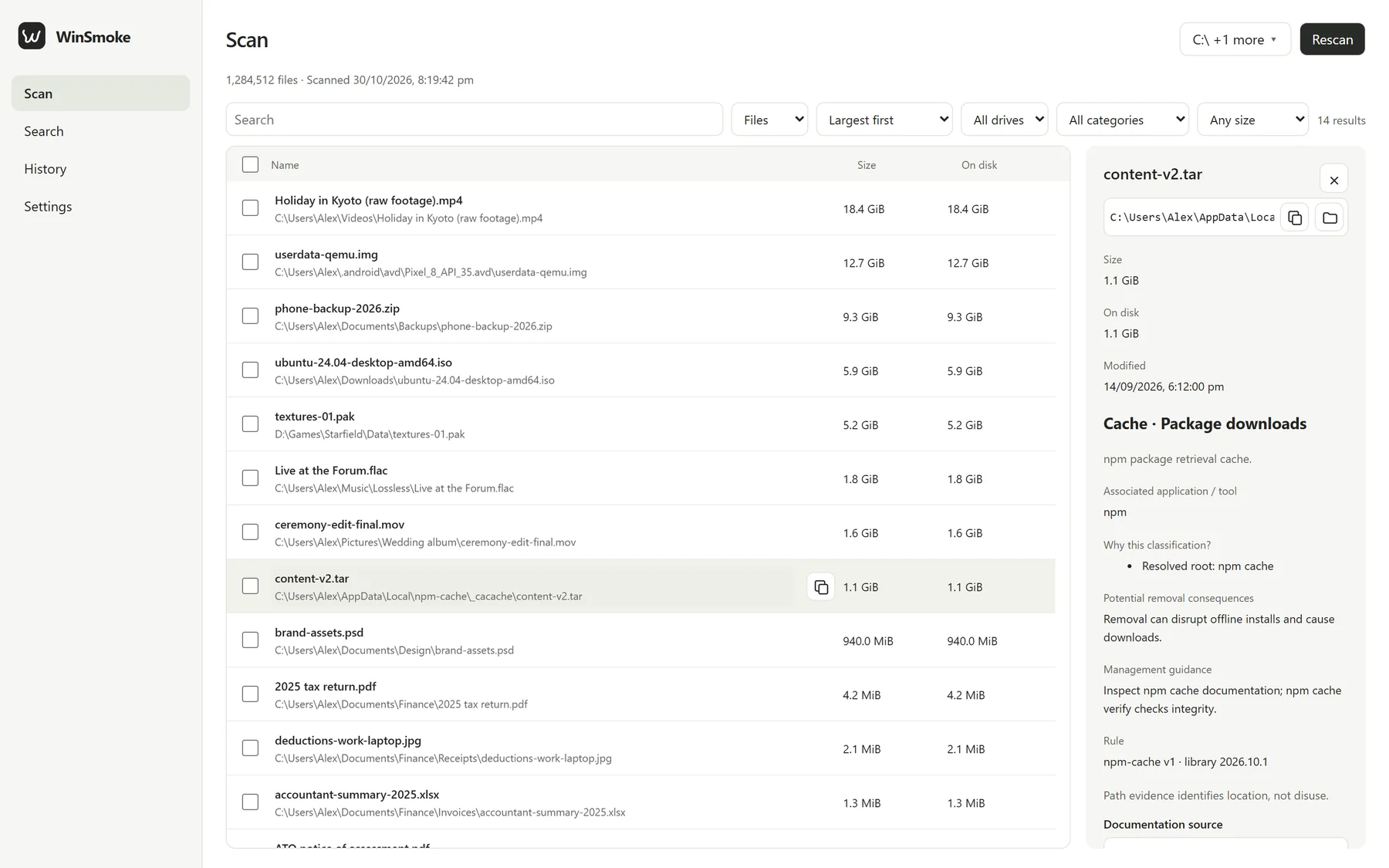
Open any item to read what it is and what removing it would do
- 4
Copy the path, reveal it in File Explorer, or export your results
Screens
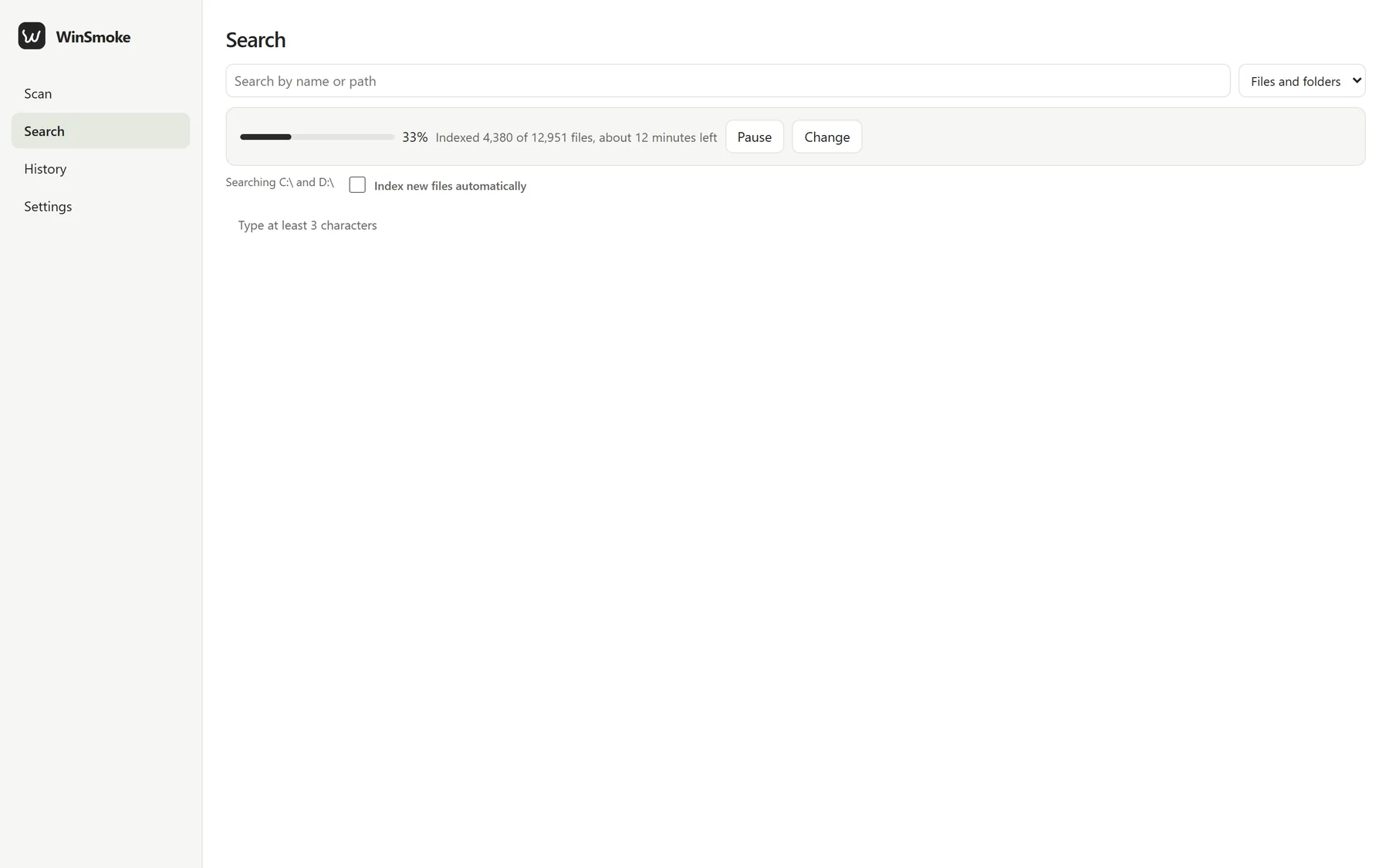
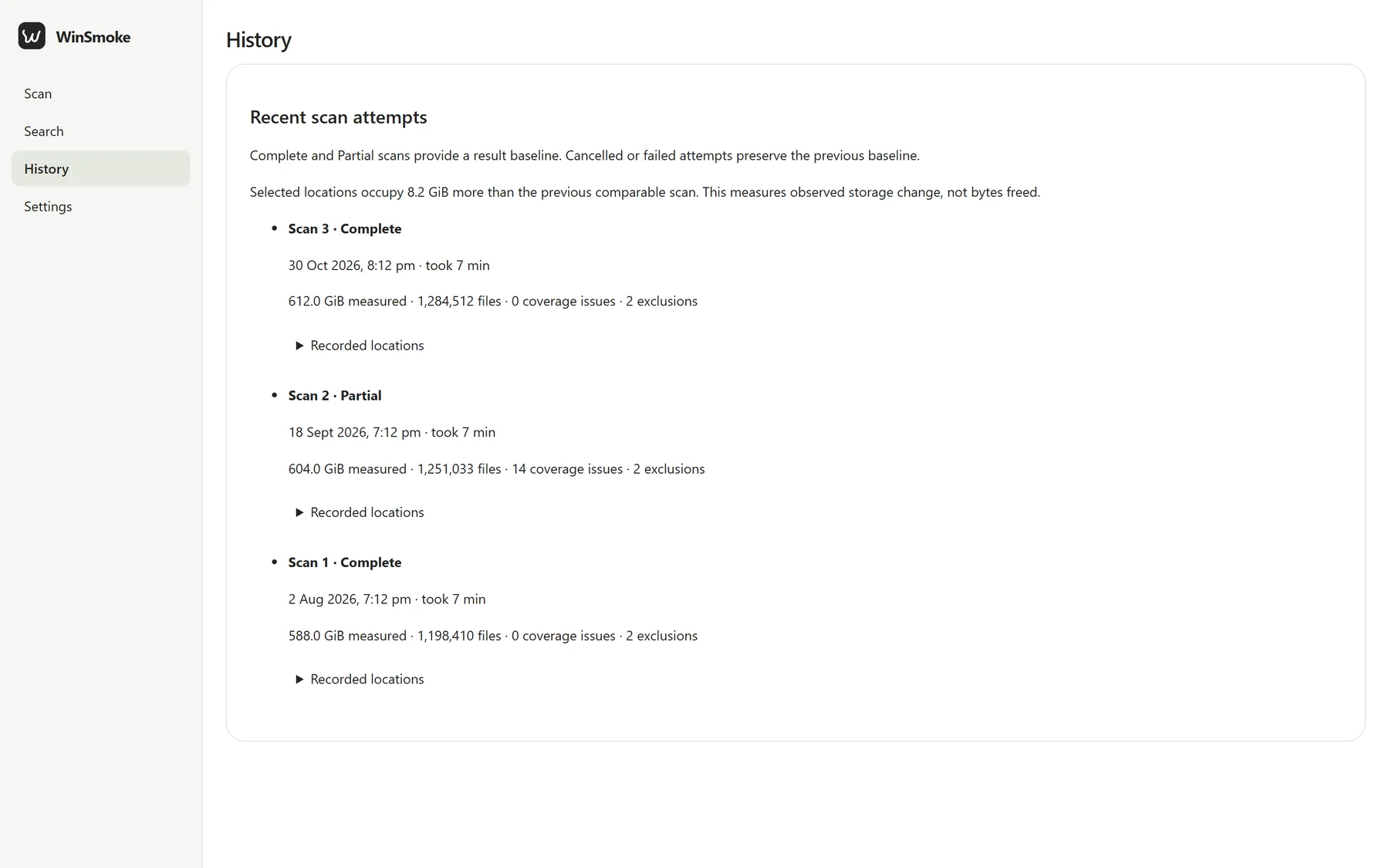
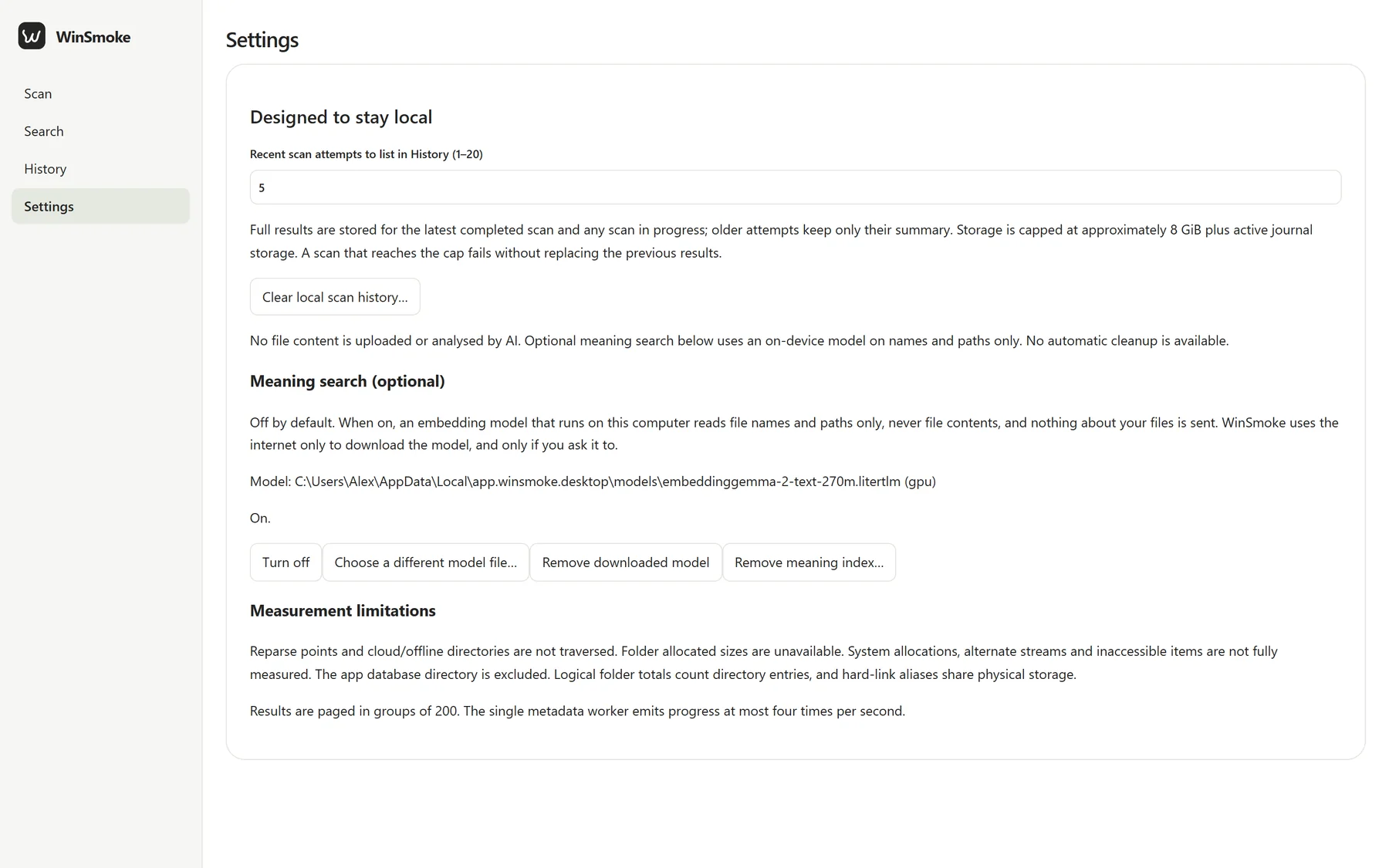
Find out where the space went
Choose a location and scan. Nothing is changed.
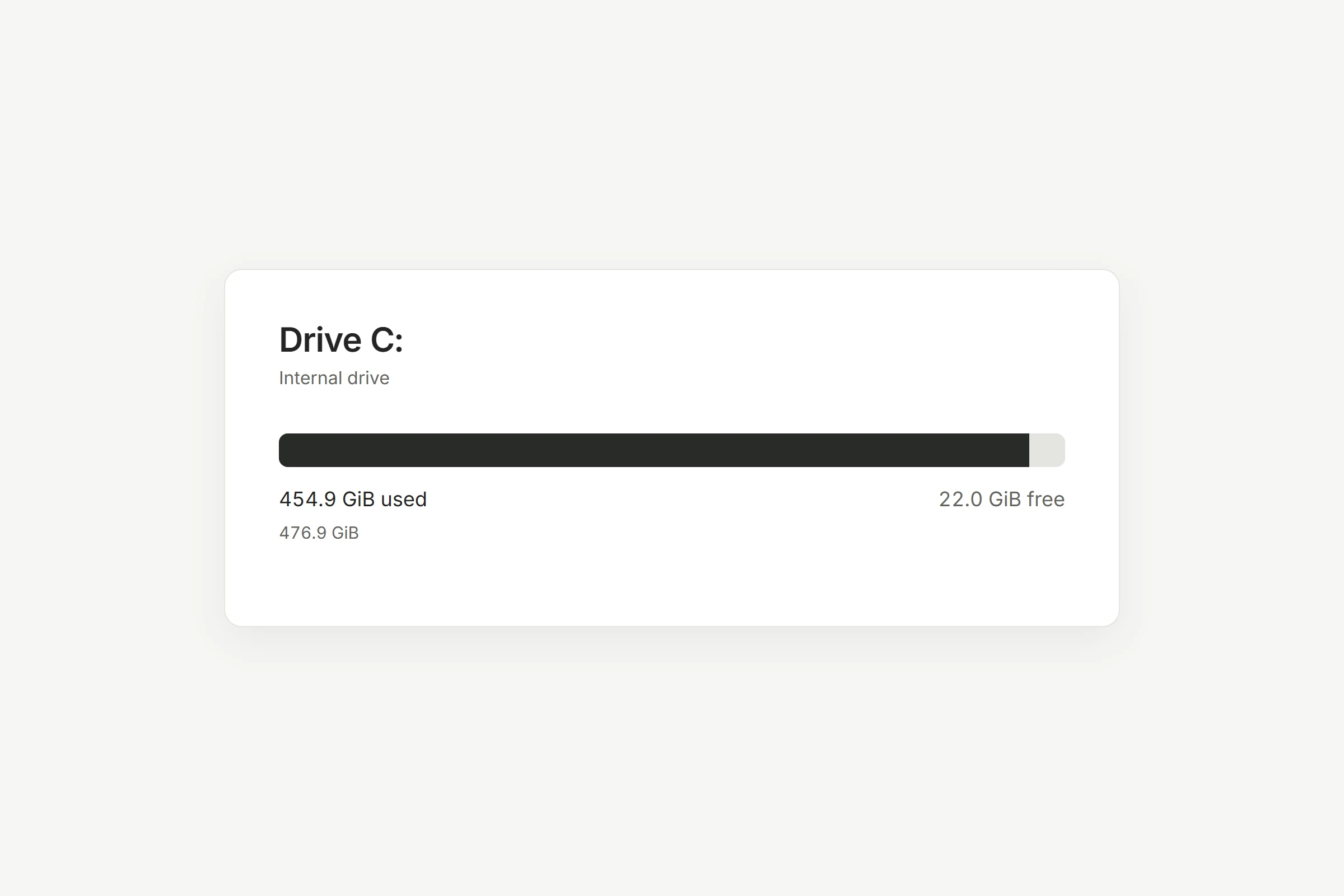
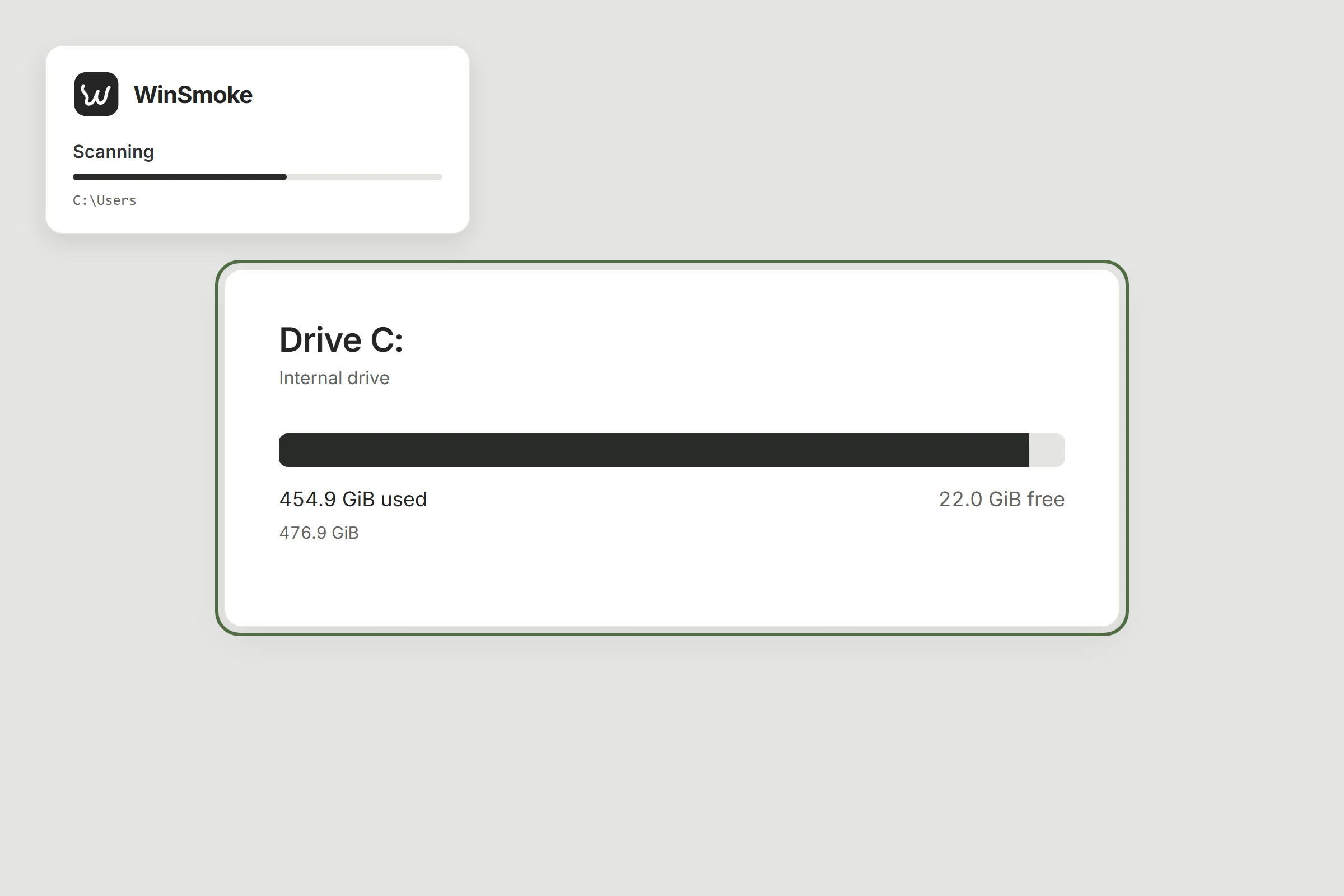
1A drive that is nearly full
454.9 GiB of 476.9 GiB in use, and nothing says what is using it.
2Scan it with WinSmoke
It reads names, sizes and dates, never file contents, and never changes anything.
3See what's biggest
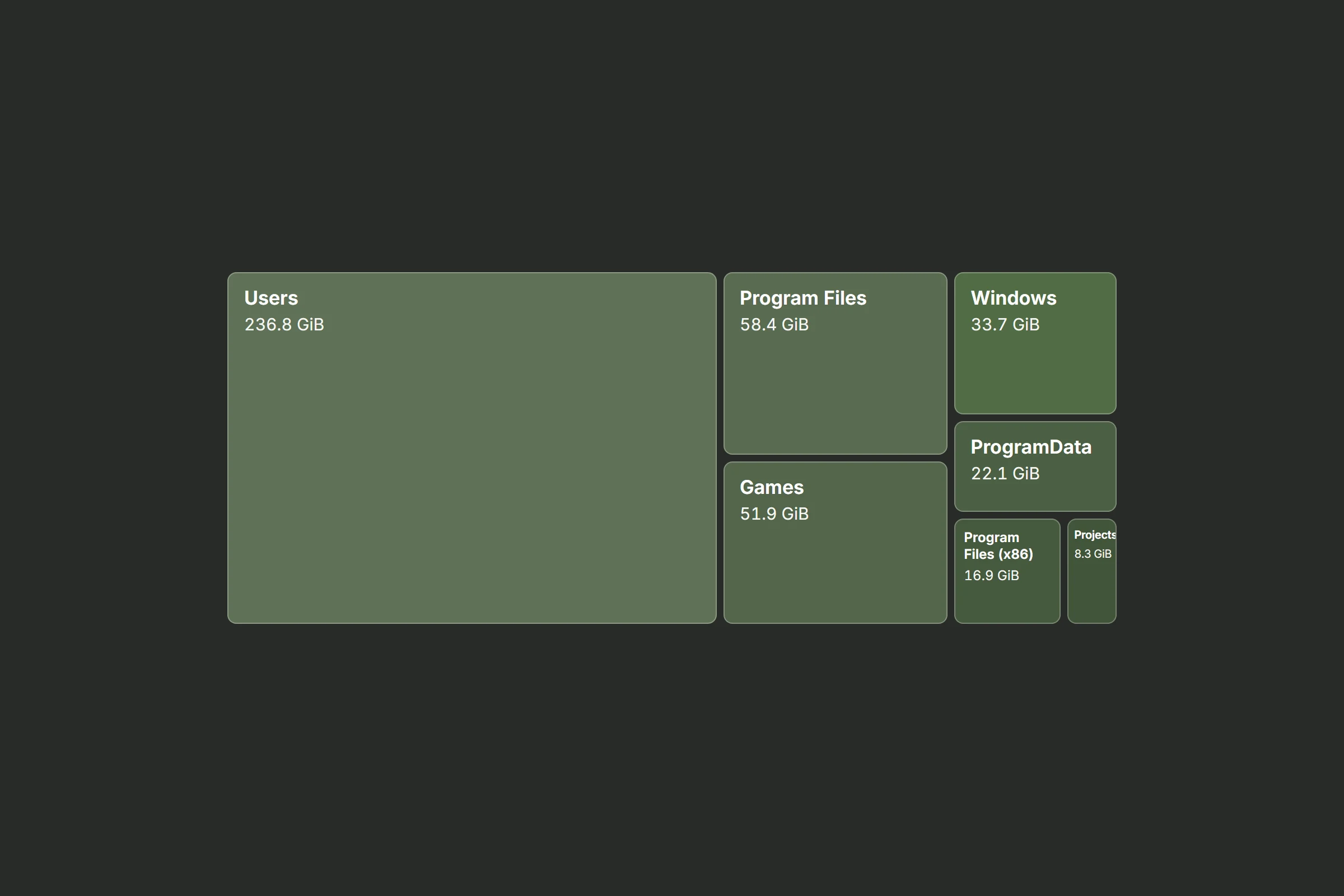
Every folder ranked by size, largest first. What you do with it is up to you.
WinSmokeLargest first| Name | Size |
|---|---|
| UsersC:\Users | 236.8 GiB |
| Program FilesC:\Program Files | 58.4 GiB |
| GamesC:\Games | 51.9 GiB |
| WindowsC:\Windows | 33.7 GiB |
| ProgramDataC:\ProgramData | 22.1 GiB |
| Program Files (x86)C:\Program Files (x86) | 16.9 GiB |
| ProjectsC:\Projects | 8.3 GiB |
Complete · 428.1 GiB measured · 1,048,213 files
Features
Everything a full drive needs you to know.
Every scan, clear
Drives, folders or files, with a clear result each time.
Plain explanations
Common Windows and developer-tool locations, explained.
Search and filter
By name or path, type, drive, category and size.
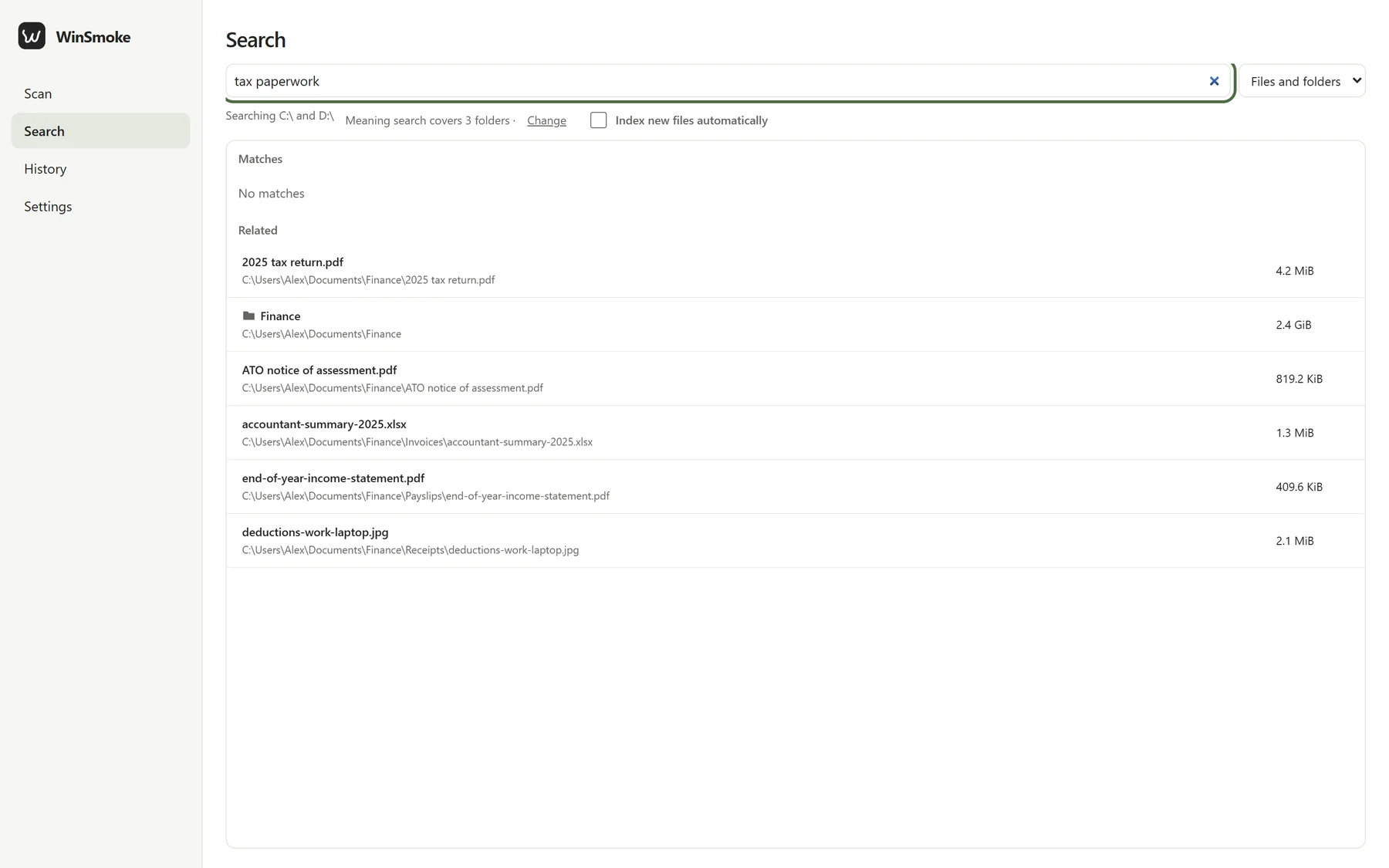
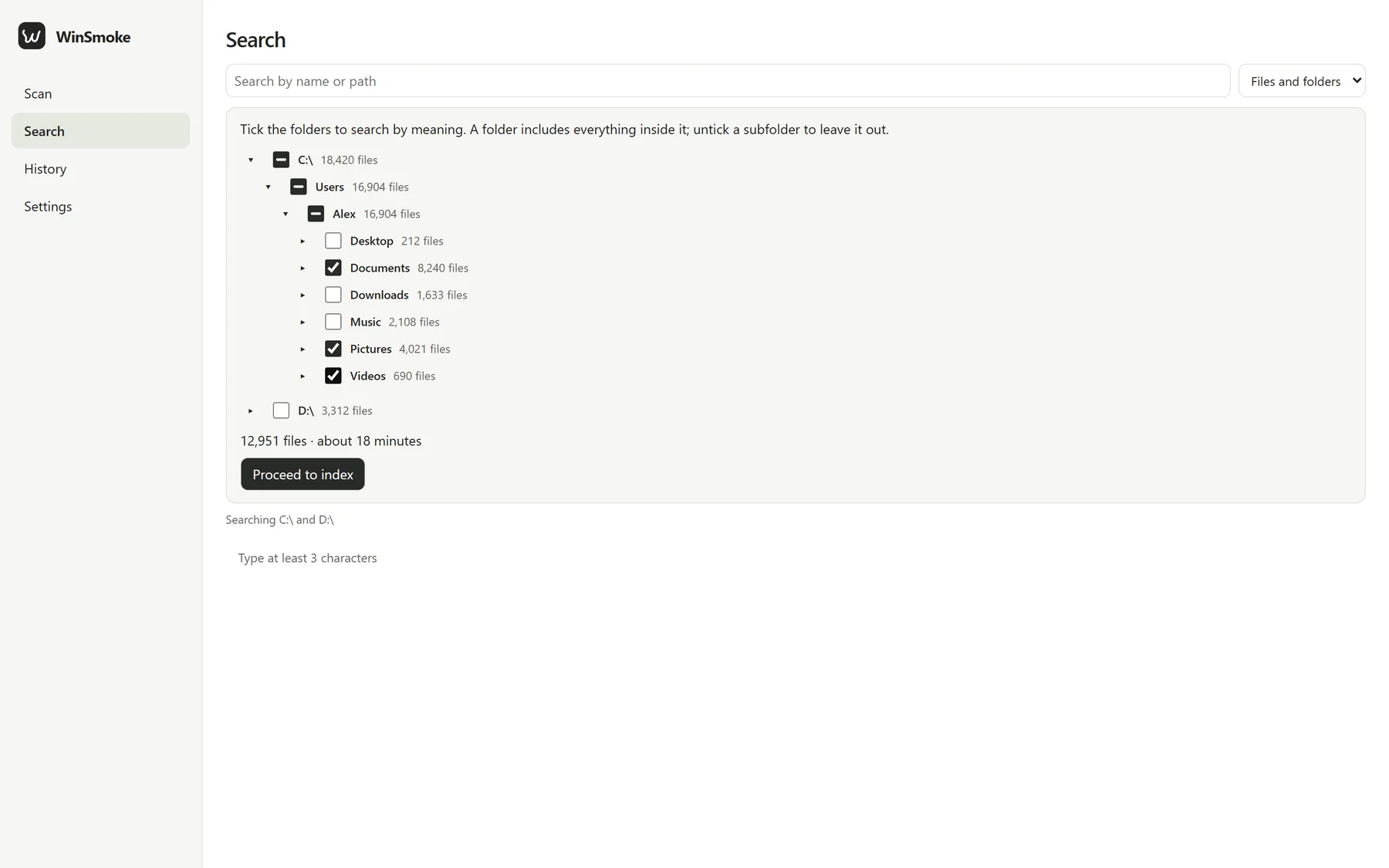
Meaning search
Optional, runs on your PC, off by default.
Export
CSV, JSON or a list of paths.
History
Compare what changed between rescans.
Trailer
See it in action
Use cases
When WinSmoke helps
Free up a full drive
Find the biggest files and folders in minutes
Understand a mystery folder
See what a package cache or virtual device folder holds before touching it
Find a file by meaning
Search "tax paperwork" and find files that never use those words
Track growth over time
Rescan and compare what has changed
About
About WinSmoke
WinSmoke shows you what is filling your Windows drives. Scan a drive or folder, see files and folders ranked by size, and read what common locations are and what removing them would do. It can also find files by what they mean. It never deletes or changes anything.
When a drive fills up, it is hard to tell what is using the space, and harder to know what is safe to remove. Many cleanup tools delete things for you or send details of your files away.
Read-only
The decisions stay with you.
WinSmoke is read-only. It measures names, sizes and dates, never file contents. A built-in library of checked rules explains common locations, and size or age never suggest that something is safe to remove. The decisions stay with you.
- Never deletes or changes files
- Names, sizes and dates only
- Meaning search stays on your PC
- Account required
- No
- What it keeps
- Scan results, file and folder names, and your preferences. File contents are never read
- Where your data lives
- On your PC. No account, telemetry or cloud. The only network use is a model download you ask for
- Age rating
- Not yet rated
What's next
- The macOS app, coming soon
WinSmoke is coming soon to Windows.
Free. No account, telemetry or cloud. Join the waitlist and we will tell you when it is out.
- Price
- Free
- Last updated
- Join the waitlist
- Coming soon for Windows
- Coming soon for macOS